What are prepaid expenses?
Prepaid expenses, or Prepaid Assets, are recognized on the balance sheet as an asset. Prepaids result from an organization paying for a good or service yet to be received.
When an organization prepays for a service or an asset and has the right to receive that service/asset over an agreed-upon term, the prepaid asset is not derecognized all at one time, but rather, it should be systematically amortized over the term of its use.
Many organizations have a large volume of these prepaid assets, and while using a specialized prepaid accounting software will automate the process of tracking and accounting for an organization’s population of prepaid assets, many choose to track and manage these prepaid assets and their corresponding amortization in Excel. Below we walk through the steps to set up a prepaid amortization schedule in Excel.
Step 1: Create an Excel spreadsheet with these columns
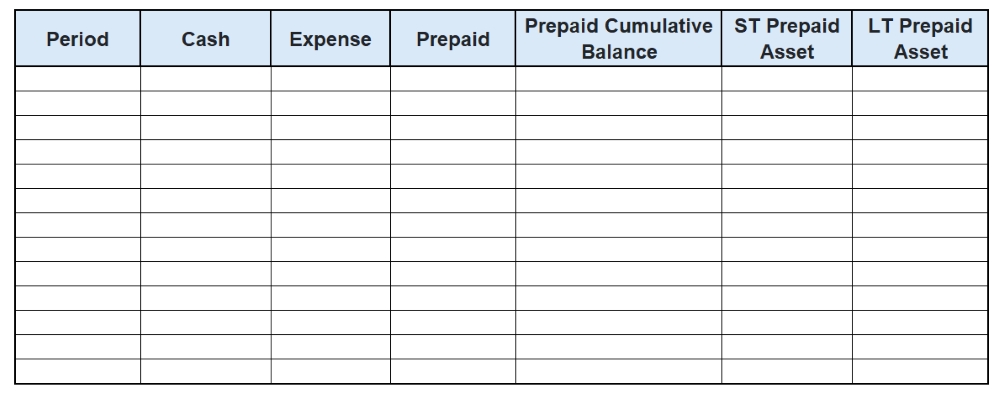
In order to account for the prepaid asset over its term, tracking the “period” on the left will allow us to see at any given point where the balance is.
The “Cash” column represents the cash payment made in advance for the prepaid good or service.
“Expense” represents the amortization of the prepaid asset over its term.
“Prepaid” will capture the monthly activity in the prepaid balance each period.
“Prepaid Cumulative Balance” will track the outstanding prepaid balance at the end of each period.
Finally, “ST Prepaid Asset” and “LT Prepaid Asset” represent how much of the prepaid cumulative balance is short-term and long-term. For prepaid assets that do not extend beyond a year, it may not be necessary to include both of these.
Step 2: Enter the dates into the period column and insert the cash payment(s)
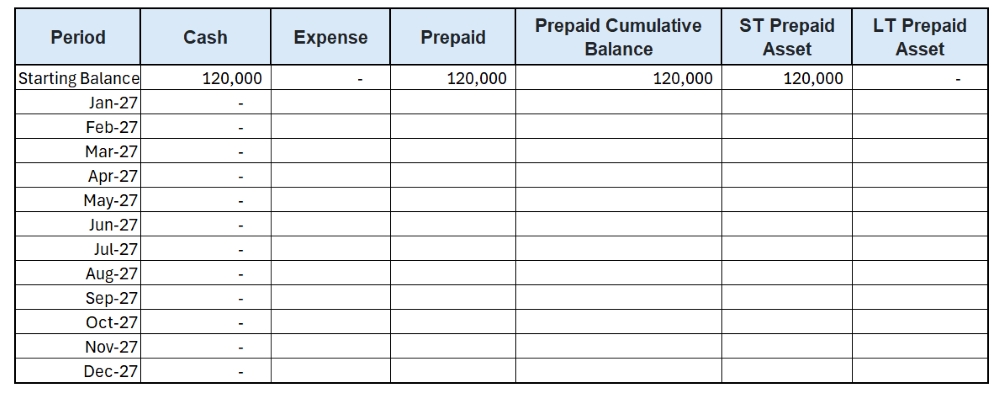
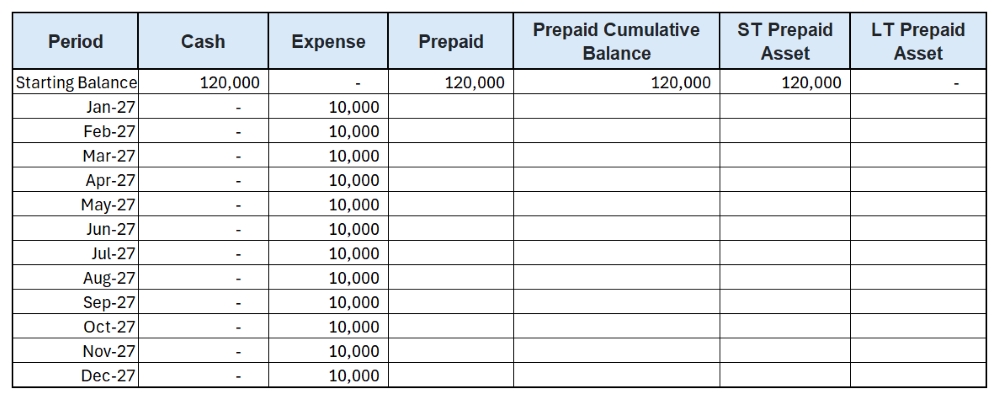
When determining the amortization period, use the term or coverage period that the payment for the prepaid asset applies to. For example, if an insurance contract is paid for in advance for 12 months of insurance coverage, the amortization period for the prepaid asset will be 12 months. Let’s use this scenario to fill in our schedule. Assume we pay $120,000 at the start of 2027 for a year’s worth of insurance coverage. This represents a prepaid asset. Because the prepaid will be fully consumed within 12 months, the entire balance will be classified as short-term.
Plug in the applicable values below:
Step 3: Enter the expense formula
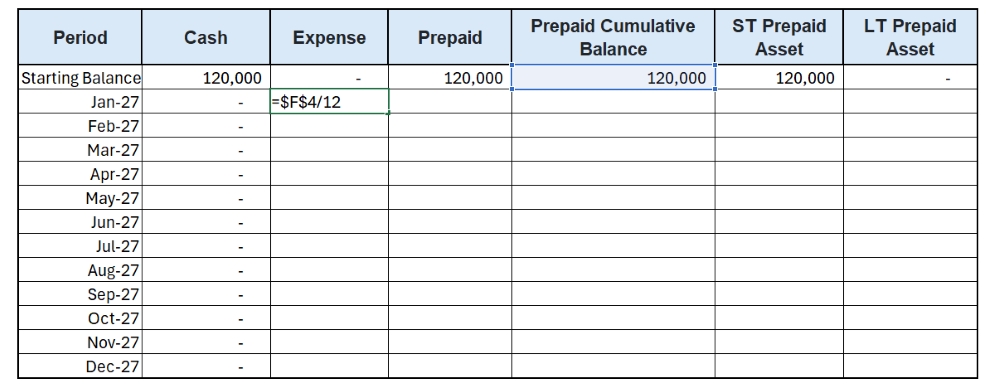
Enter “0” for expense in the starting balance section, as no time has passed as of the start of January. In all subsequent periods, the balance is represented as of the end of the period.
The amortization expense for each period is calculated by evenly spreading the cost of the prepaid asset over the coverage period. Take the prepaid and divide it by the number of periods, in this case, 12.
Step 4: Full the expense column
Copy the formula for expense down for the remaining Expense rows.
Step 5: Enter the formula for prepaid activity column and the prepaid cumulative balance
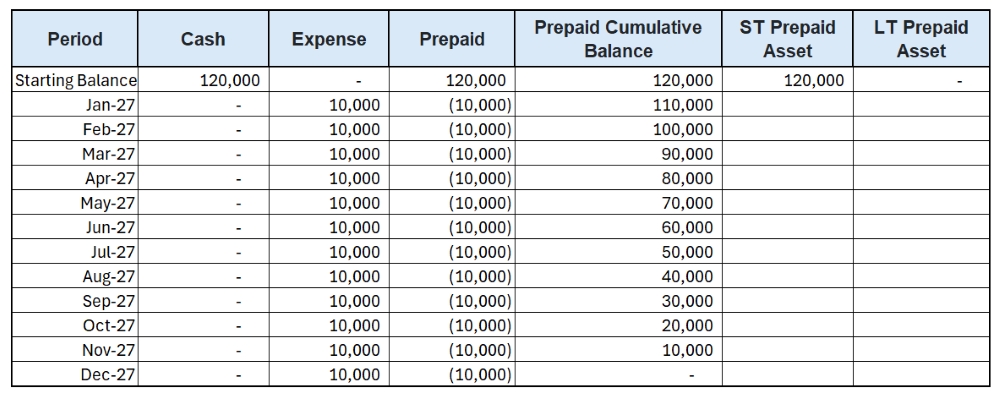
The formula for the prepaid activity column is the difference between the cash and expense in each period. Each period, as the prepaid expense is recognized, the prepaid activity column reflects the reduction in the prepaid, and the prepaid cumulative balance is reduced until it reaches 0 at the end of the coverage period.
Step 6: Complete the final columns for the short-term and long-term prepaid asset breakout
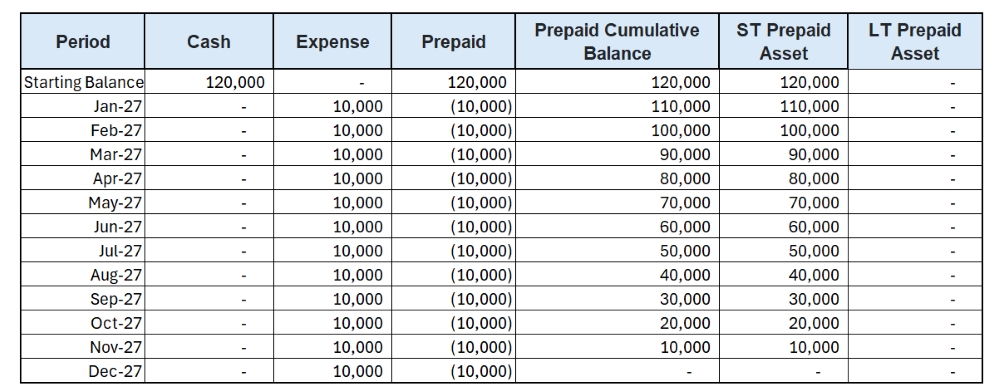
Again, in this case, because the entirety of the prepaid will be used within 12 months, the entire prepaid is classified as short-term. The cumulative balance each month is pulled over into the short-term column, and our amortization schedule is complete.
Summary
This schedule will provide you with the calculations for your journal entries for the lifecycle of the prepaid, if you’re using Excel. Although it seems like a simple amortization schedule setup, organizations can have hundreds or even thousands of prepaids, with different amortization periods, so tracking these all in Excel can be tedious and error-prone. If your organization is interested in automating this process, FinQuery’s accruals and prepaids accounting software can assist.